Business Settings
This is where you can modify various settings relating to your business.
Business Mode
EFTPOS Air supports multiple modes to better tailor the app to your business. You can read more about modes in the Modes section.
Set Refund Passcode
This is where the app will prompt you to set your refund passcode. You'll need to do this before you make any card or digital wallet transactions. A refund passcode is important because it authorises the refund transaction to proceed.
To set a new refund passcode, you'll first need to enter your EFTPOS Air account password to verify that you own the account.
Once you've successfully authenticated, you can set a new passcode by entering a numeric code between 4 and 8 digits.
You can read more about making refunds in the Refunds section.
App Lock
You may restrict access to the EFTPOS Air app using a PIN or biometrics for additional security. When enabled, the app will automatically lock after a period of inactivity or whenever the app is closed, requiring a PIN or biometric verification upon reopening.
Note
App Lock only restricts access to EFTPOS Air on the device (or devices) you enable it on. Your PIN and biometric data are kept on your device and not synced to other devices.
When enabling App Lock, you must set a 4-6 digit PIN, but you may also choose to enable biometrics, or how long it takes for EFTPOS Air to re-lock.
Once enabled, you will need to re-enter your PIN before changing or disabling the App Lock.
Forgotten PIN?
If you forget your PIN, you can disable App Lock by logging out and logging back into EFTPOS Air using your email and password.
Invoice Settings
Invoices can be customised to tailor to your business needs. This feature can be accessed by navigating to More > Business Settings > Invoice & Receipt Customisation.
This feature allows you to show or hide your business's street address on EFTPOS receipts. You can modify or hide the address displayed on invoices by editing your business details in the EFTPOS Air app.
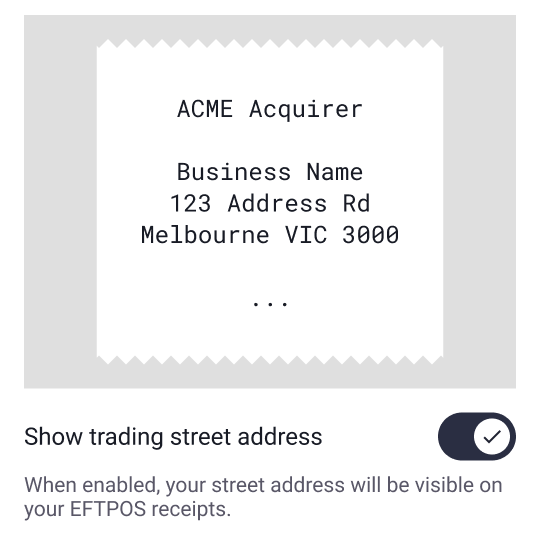
Shown Details
The Suburb, State and Postcode will still be shown when this option is toggled off.
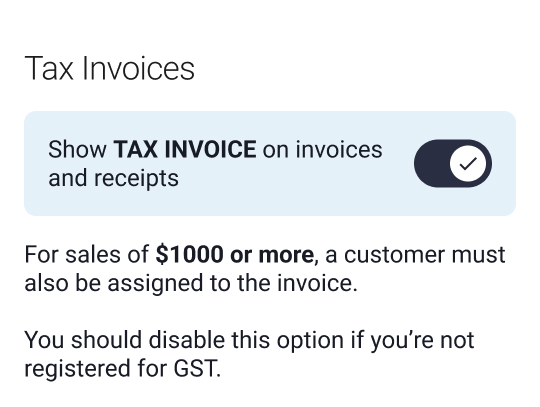
This feature determines whether TAX INVOICE is automatically included in the invoice and receipt title when shared with a customer. This can be enabled/disabled at any time, and should be determined by your registration status for GST.
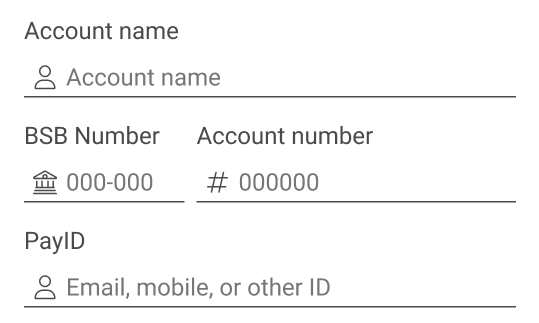
This section allows you to add your banking details to invoices – providing your customers with multiple payment options. You can choose to display your bank Account Name, BSB Number, Account Number, and PayID® details on your invoices.
PayID® is a registered trademark of NPP Australia Limited.
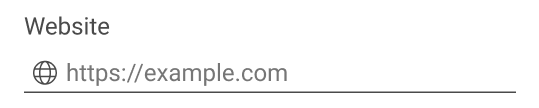
A website URL can be shown automatically on your invoices. Enter your full website URL here and it will display at the bottom of your invoices.
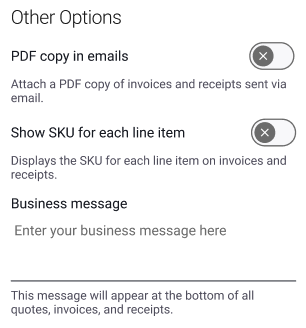
PDF Email Attachment
If enabled, a PDF copy of receipts and invoices will be attached to emails.
Item SKU Codes
If enabled, item SKU codes will appear next to the item names on receipts and invoices for bookkeeping purposes.
Business Message
This field allows you to input a custom message which will appear automatically at the bottom of invoices. For example, you may want to include your DGR status in this message.
Additional Users
If you'd like to support additional users accessing your EFTPOS Air account, you can invite new users from this menu. Additional users can log in to the EFTPOS Air app on their mobile device, and create and process invoices and sales on your behalf. You can choose a role for each new user to restrict their permissions.
To add a new user, press the (+) button, enter the user's email address, and select their role. Then, select the role applicable to their responsibilities.
| Role | |
|---|---|
| Manager | Has the same access as the main user except for modifying Business Settings. |
| Operator | Has access to creating and processing invoices and sales. Operators are unable to make any changes via the More menu except for configuring card payments. |
Using the EFTPOS Air Portal, business owners can create new role types and descriptions using Roles & Features. Once created, the new role will appear for selection to assign to your users.
Update Roles in the Portal
You can update and/or create new role types and modify role permissions via the EFTPOS Air Portal. Refer to the Portal section of this guide for further details.
Taxes
The taxes menu allows you to set configurations for GST. Depending on your individual circumstances and the applicability of GST to your sales, you may choose to set the default configuration for GST, or you can configure each item separately for GST purposes.
Westpac does not provide any legal, financial, tax or other advice to you in providing EFTPOS Air.
It is your responsibility to determine the applicability of GST to sales you make and to satisfy your own GST obligations including the reporting and paying of GST to the Australian Taxation Office.