Refunds
All refunds are initiated by viewing a paid invoice or sale from the Paid tab, and then selecting Refund from the overflow menu ().
When performing a refund, you can choose to:
- refund the entire invoice or sale; or
- refund a specific amount; or
- just refund certain line-items
Refund a Sale or Invoice
To refund a sale or invoice, simply find the relevant sale or invoice in the Paid tab and tap on it.
From there, select the overflow button at the bottom right of the screen and choose Refund.
When creating a refund, you will be prompted to either select the line items you'd like to refund, or enter the value you'd like to refund. If you've already done a partial refund for this sale or invoice, then subsequent refunds will only be available using the same method (line items or value) as used previously. Included GST is outlined under the items or value specified for the refund.
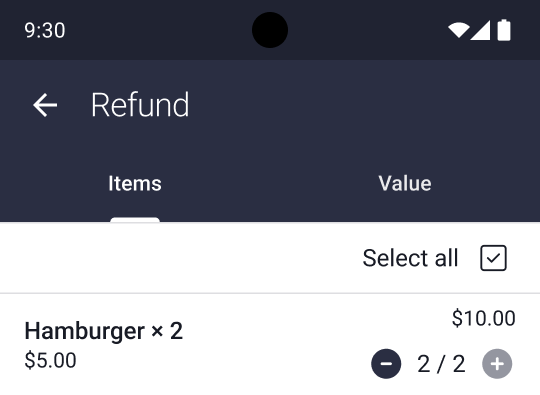
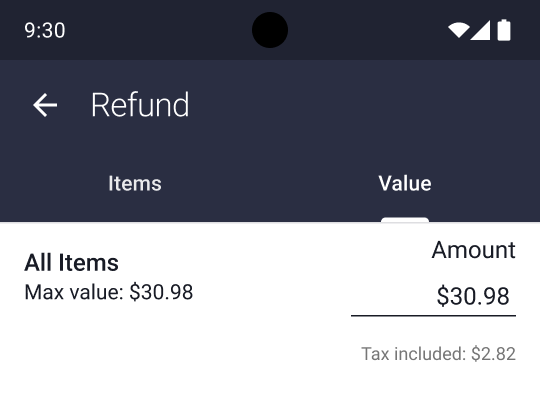
Once you've chosen the line items or entered the value to refund, select Continue. Next choose the payment you'd like to refund. If you'd like to refund a card-based payment, your customer will need to present the same card used for the purchase. You'll then be guided through the standard transaction flow.
If you're refunding cash, direct bank transfer, or other non-card payment, you'll need to manually refund the customer outside of EFTPOS Air.
Once the refund is complete you'll be shown the result of the transaction. If the refund requires that more than one payment is refunded, then you can tap "Back to Refund" to choose the next payment.
Mixed GST Refunds
When refunding a purchase that included GST and non-GST items, you can use the Items tab to specify which items are being refunded. Refunds based on value are not currently available on EFTPOS Air.
Refund Using a Different Card
If your customer no longer has the original card used for payment, or if they used a digital wallet (such as Apple Pay or Google Pay) that doesn't match the card number used, then you may need to do a refund to a different card (a refund that doesn't require the original card to be presented).
In order to process a refund for a different card, you'll need to contact support to explain the reasoning and process the refund.