Printers
EFTPOS Air features printer configuration settings, allowing you print receipts to a receipt printer and order slips to other printers (specific to hospitality mode). To access available printers, navigate to More > Printers.
Finding a Printer
EFTPOS Air can find a printer using either Bluetooth or Wi-Fi. A list of printers is displayed when your device can connect to them.
- To connect via Wi-Fi, please ensure that your device running the EFTPOS Air app has Wi-Fi enabled and is connected to the same network as any printers to be configured.
- To connect via Bluetooth, please ensure that your device running the EFTPOS Air app has Bluetooth enabled alongside any printers to be configured.
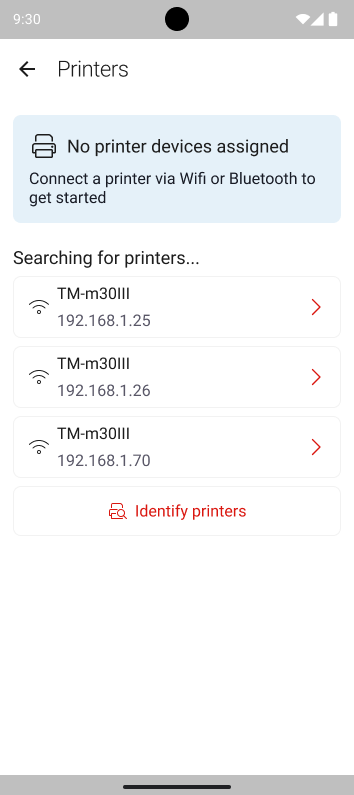
Non-Hospitality Mode
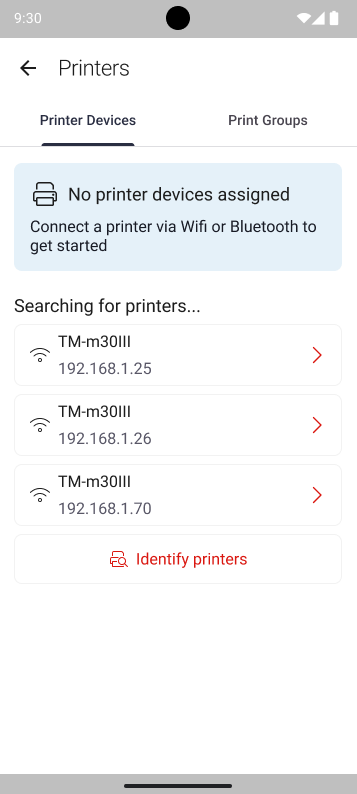
Hospitality Mode
Create Printer Groups (Hospitality)
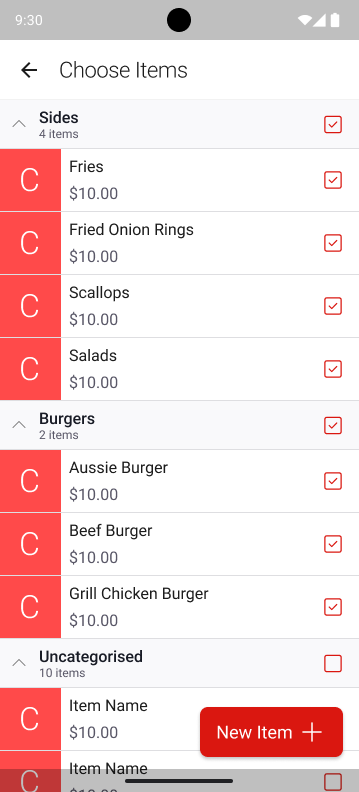
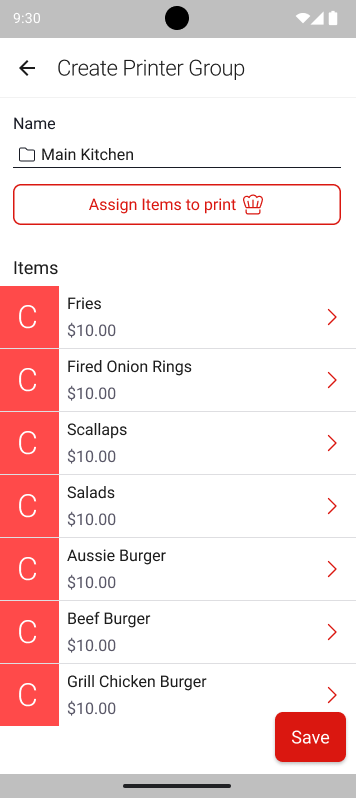
Printing groups are used to determine which printer order slips should be sent to, depending on the type of item that has been ordered.
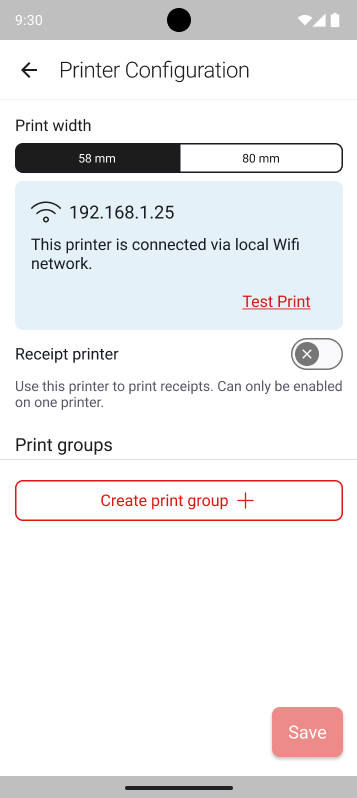
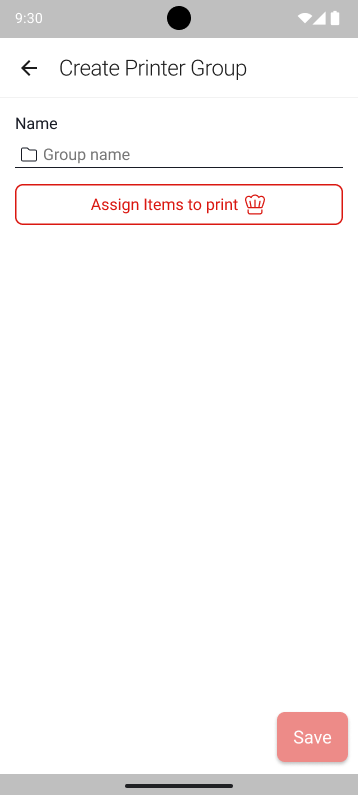
To create a printer group, tap on the Create print group button under the Printer Configuration menu. In this menu, you can name the printer group, create items and add items by category.
Configuring your Printer
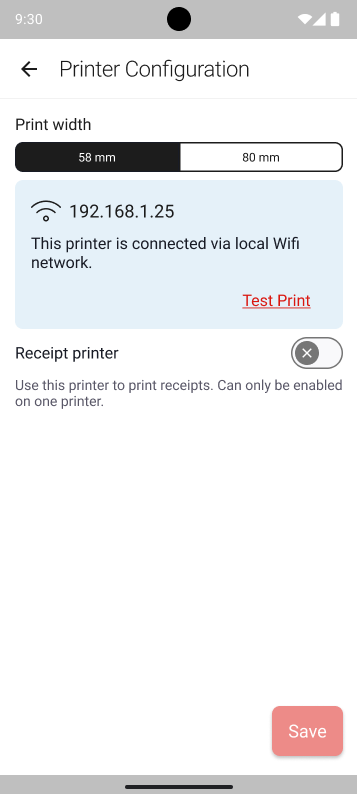
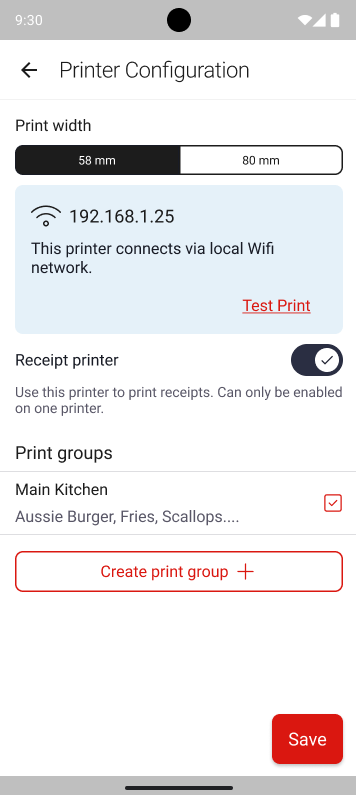
The Printer Configuration page outlines the settings for your printer. Printer settings include the following:
- Print Width: This determines the width of receipts and order slips when they are sent to printers.
- Test Print: Tapping this text prints out a short test receipt, which confirms whether the printer connection is operational.
- Receipt Printer Prompt: This slider determines whether EFTPOS receipts are printed to the specified printer.
- Print Groups (Hospitality only): Enable or disable print groups for the specified printer.
Non-Hospitality Mode
Hospitality Mode
If a test receipt cannot be printed, please attempt the following troubleshooting steps:
- Make sure your phone or tablet is connected to the same network as your printer
- Check your router configuration to ensure that devices on the network can talk to each other
Editing a Printer
To edit a printer set simply tap the printer you want to edit from the list. Make any changes as detailed above and use the Save button once you're finished editing.
You can also delete a modifier set by using the Delete Printer at the bottom of the Edit Printer screen.