Integrations
Integrating your Xero account with EFTPOS Air allows you to push invoices, and associated customer and transaction details from the EFTPOS Air app automatically. This streamlines your accounting activities and remove the hassle of manual processing.
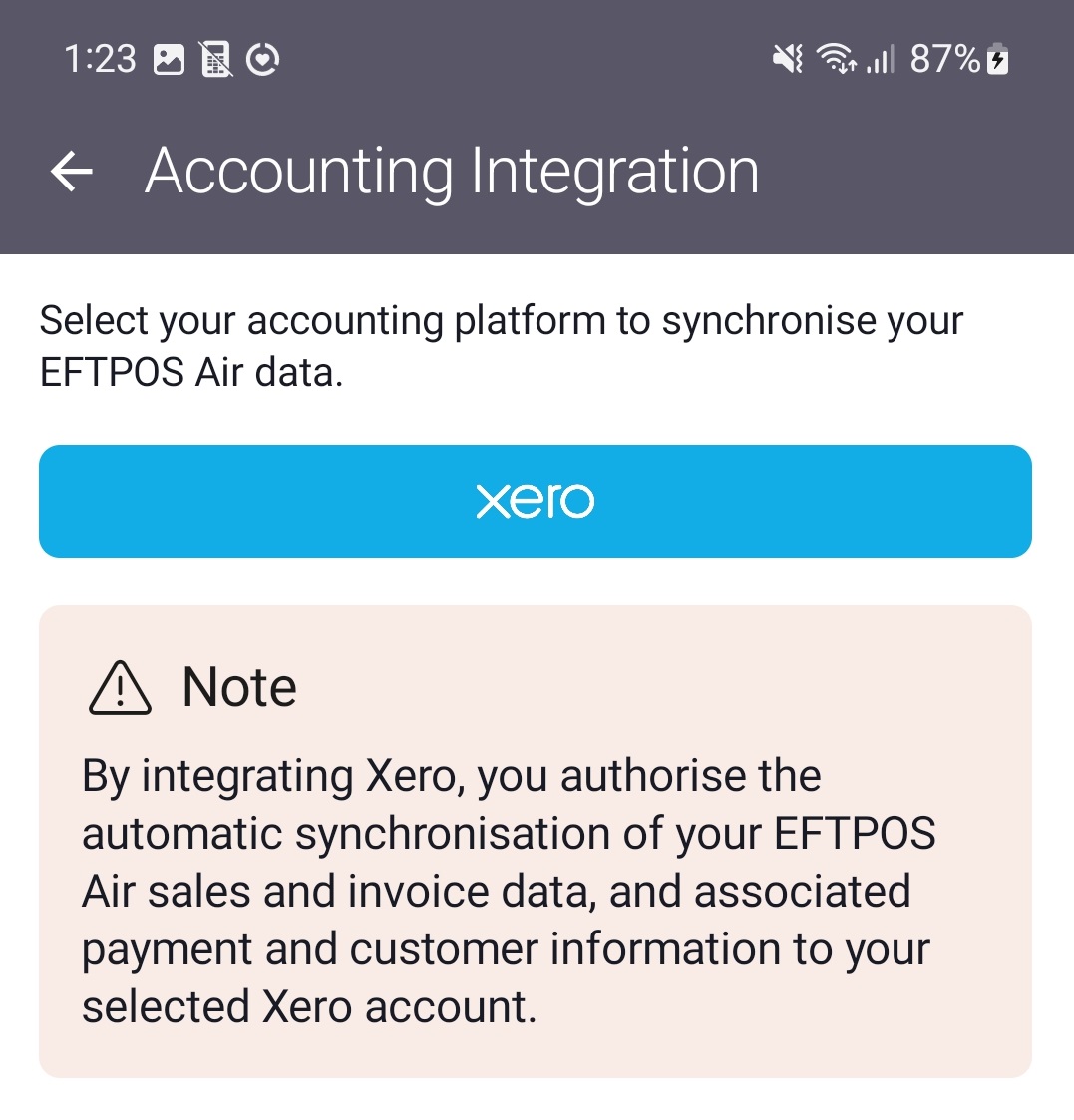
This is where you can connect your EFTPOS Air account to Xero accounting. This allows you to synchronise all your EFTPOS Air invoices and sales through to your Xero account.
Simply select Xero from the accounting integration page, then enter your Xero credentials and follow the instructions to allow EFTPOS Air access to your Xero account.
The following invoicing data may be synchronised to Xero when this feature is enabled:
- Invoice
- Invoice number
- Date created
- Due date
- Invoice status
- Discounts & Surcharges
- Items
- Customer
- Name
- Email Address
- Phone Number
- Address
- Transaction data
- Date
- Amount
- Transaction type
- Cents adjustment (e.g. paying $5 for a $4.98 invoice, the cents adjustment is +2c)
Invoice Synchronisation
Only new invoices, or changes to existing invoices, will sync to Xero. Customers will only be synchronised when an associated invoice is synchronised. Information is synchronised 1-way to Xero, so deleted invoices in EFTPOS Air are not deleted from Xero.
Managing your Xero Data
Data that is synchronised to your Xero account is managed through Xero services. Therefore, if you would like to remove data that has been synchronised to Xero, it will need to be deleted through Xero's interface.
If you wish to disable synchronising data to Xero, you may either disable this via the EFTPOS Air app, Xero interface or close your Xero account.
Disabling the Xero Integration using EFTPOS Air
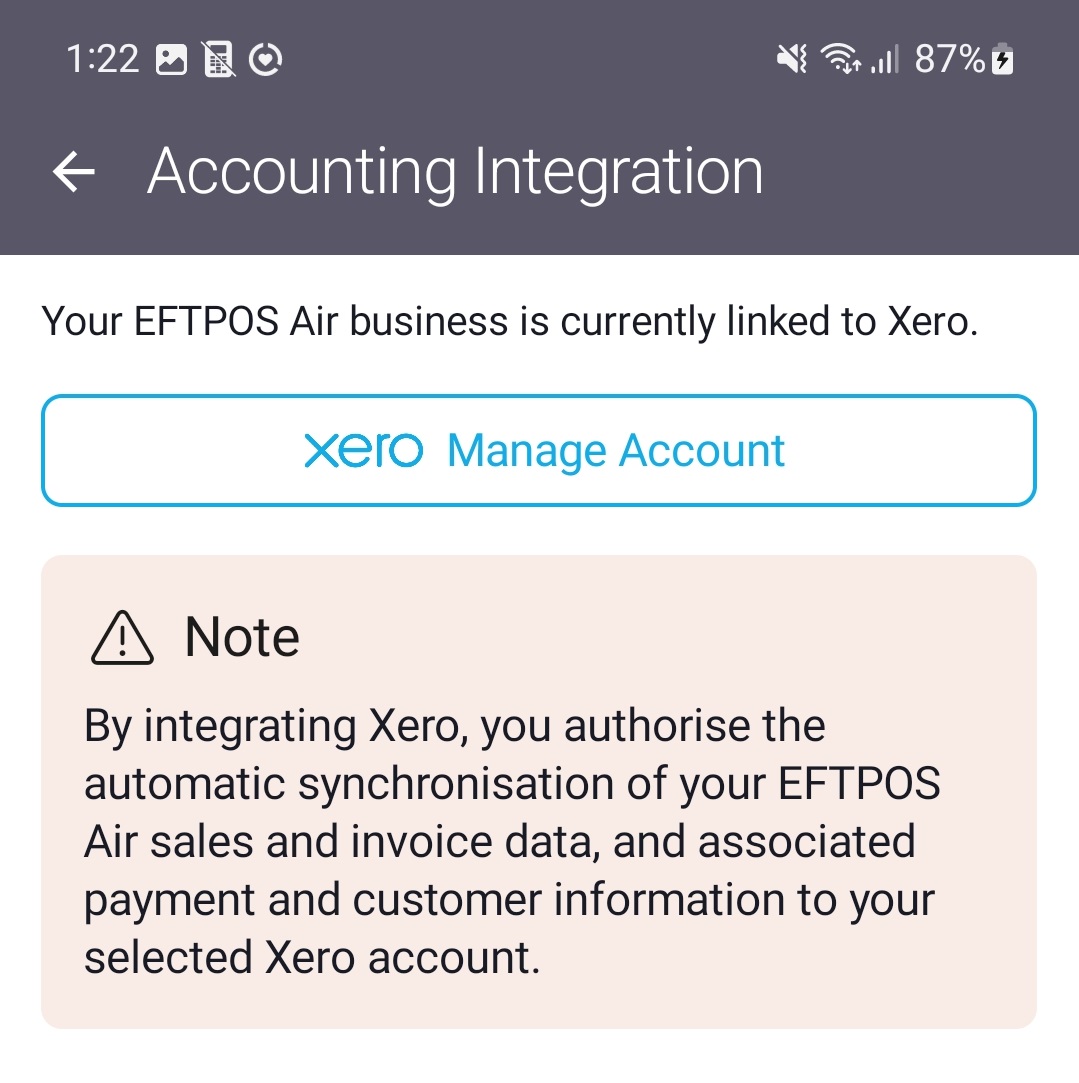
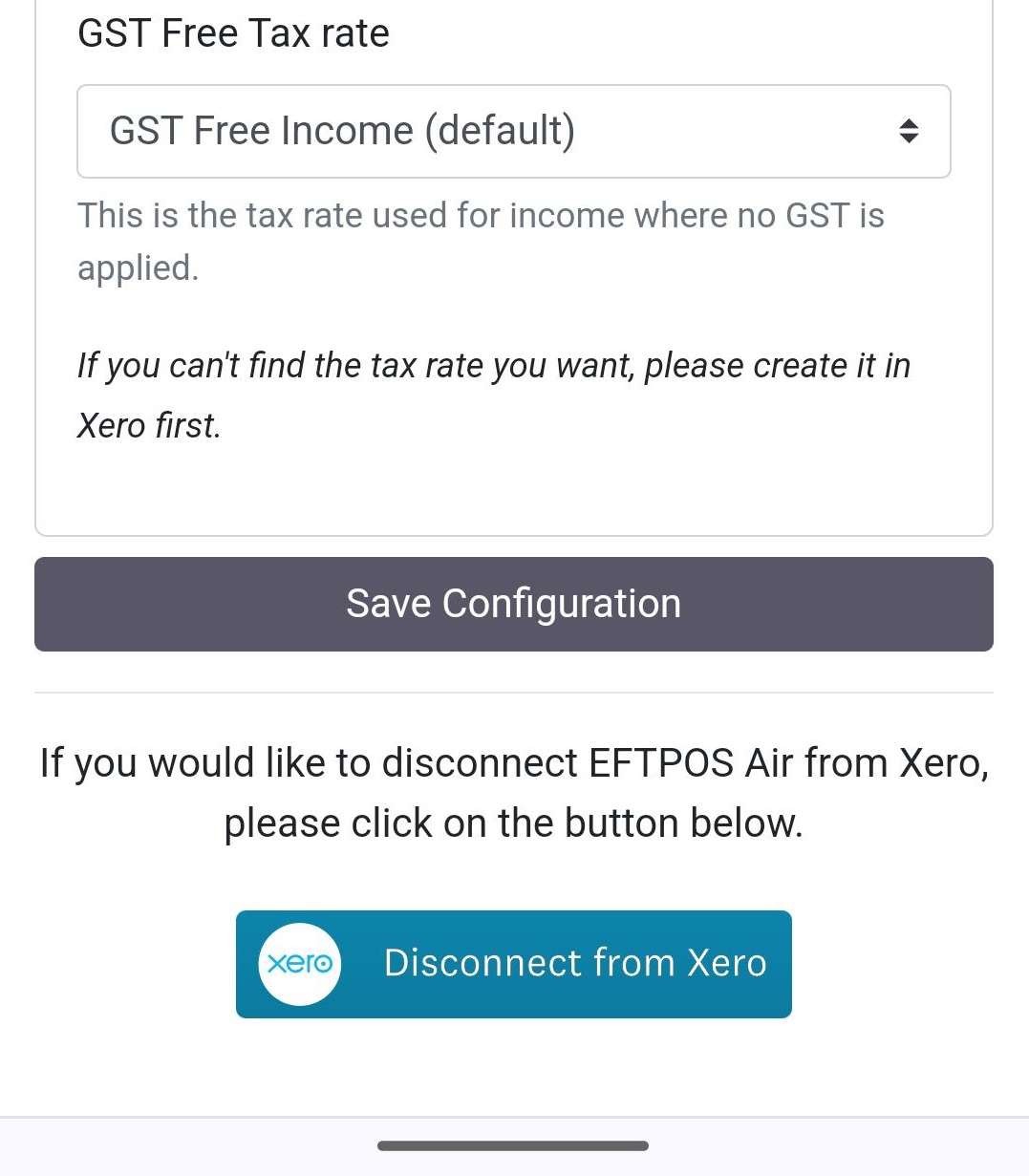
If required, you can disable the Xero integration, preventing further data from being synchronised to your Xero account. This can be accessed by navigating to More > Integrations > Manage Account. This will open a Xero configuration website; scroll down to the bottom of the page & tap Disconnect from Xero.
For more information about Xero, visit their website at https://www.xero.com/au/.