Table Management
As a part of the dine-in hospitality experience, EFTPOS Air offers you the capability to create orders and assign them to tables.
Creating the Table Map Section
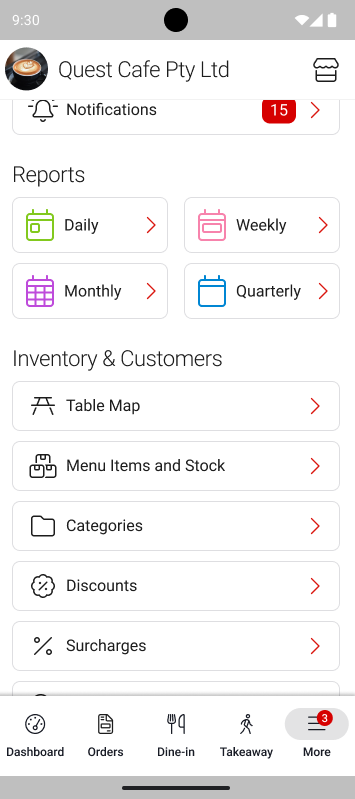
To create a table map, you need to be operating in Hospitality Mode. Once you're operating in Hospitality Mode, navigate to More > Table Map.
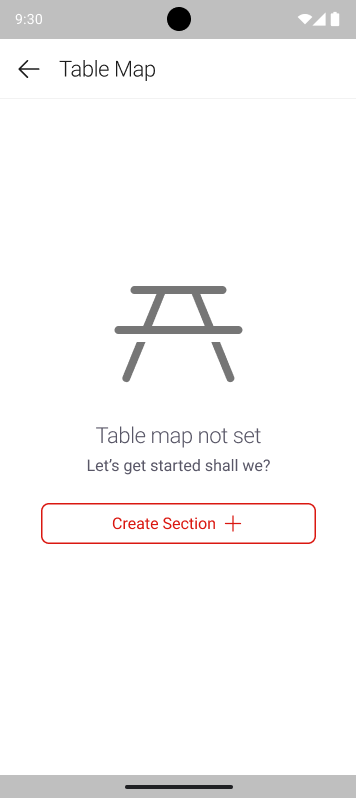
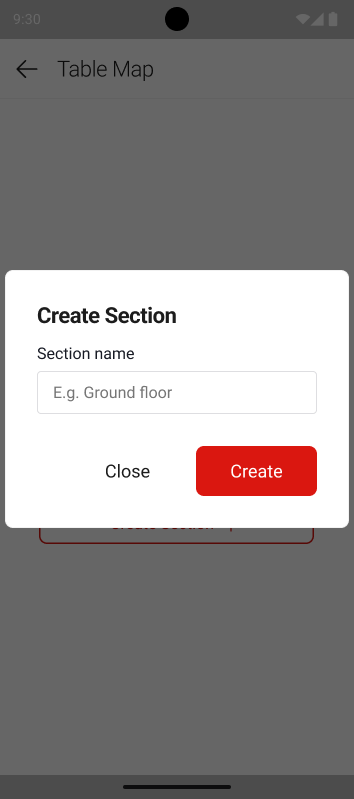
If no table map has been previously created, you will be prompted to create a section and name it according to the floor/area. You may have multiple sections for different areas within the venue, allowing you to create table maps for the entire premises.
Creating the Table Map Layout
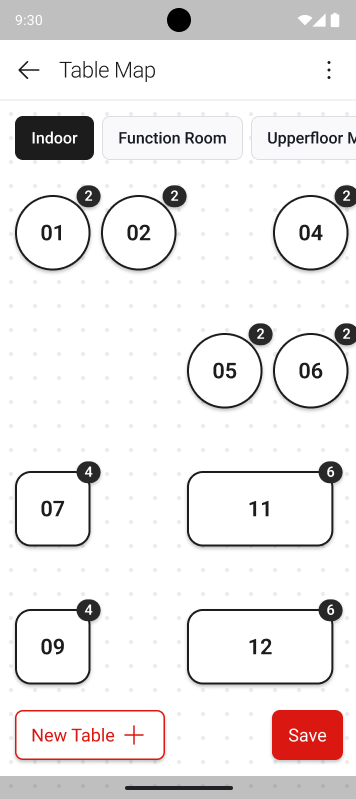
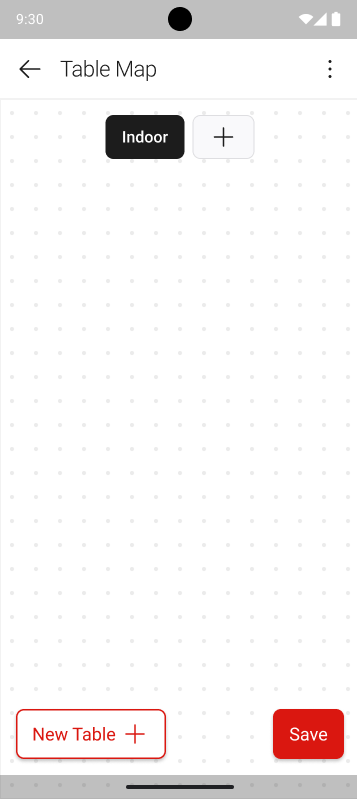
Now that the table map section has been created for the desired area, the table map layout can be built.
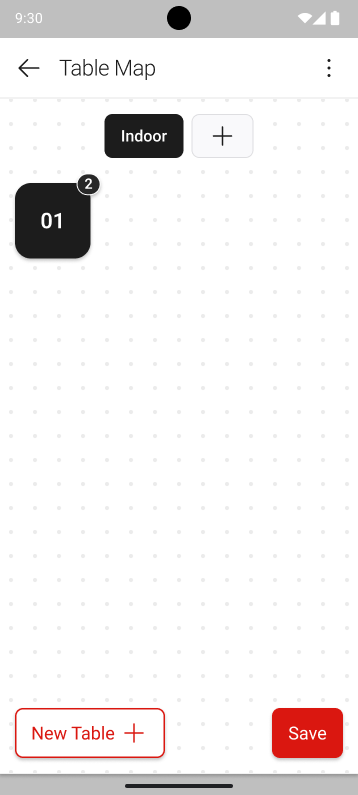
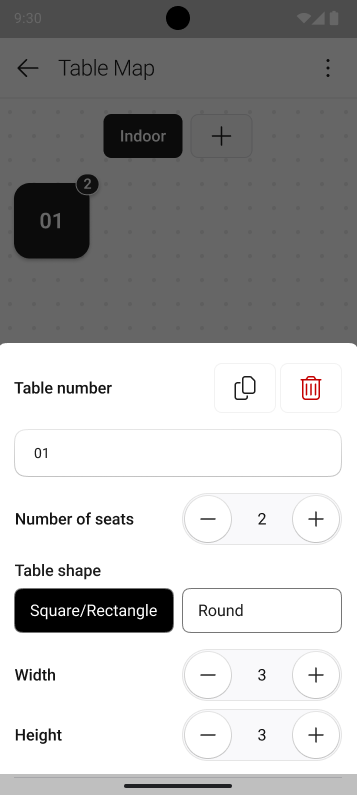
To create your first table, tap on the New Table button. The table setup will prompt for the following details:
- Table Number
- Number of Seats
- Table Shape
- Table Width & Height
- Copy Table
- Delete Table
This array of options allows for tables to be customised to the layout of your venue.
Editing the Table Map Layout
Creating the first table in a table map section is just the first step in creating a layout for your venue. From there, you can do the following to create an accurate layout:
- Tap on tables to edit them, tap outside of the prompt area to close the edit prompt
- Hold and drag a table to move it around the grid
- Tap on the + icon at the top to create a new section
Tap on Save to confirm the changes.